
11 min read
How to block whole app categories on iPhone, not one app at a time
Block Social, Games or Entertainment in one rule on iPhone with Screen Time, the four catches that quietly undo it, and where a paid blocker helps.
You block Instagram. Two weeks later you install Threads, and the rule you set has nothing to say about it. Block that one too, and there is another feed a tap away in the App Store.
There are two ways to write the same rule on an iPhone. One names apps. The other names a category, so the rule applies to whatever is in that category rather than to the list you typed. iOS does both, free. Here is the category version, the four things that undo it, and what you get by adding something else.
Why a category rule beats a list of apps
A per-app rule covers the apps you picked. That is the whole promise, and it carries two costs. You have to own an app before you can block it, so the replacement you have not downloaded yet is out of scope. And you have to keep the list current for as long as you care about the outcome.
A category rule points at the category instead. The two shapes sit side by side in Apple’s framework documentation, the same machinery Screen Time and every third-party blocker run on. ShieldSettings, the object that decides what gets covered, has one property for “Applications for the system to cover with a shielding view” and a separate one for “Categories of apps for the system to cover with a shielding view”. The picker carries a matching switch, includeEntireCategory, for “whether the selection should include applications and web domains from the selected categories”.
So one rule covers fourteen apps and the fifteenth, which is the reason to bother when the problem is a kind of app rather than a particular one.
One honest caveat. Apple’s iPhone User Guide for iOS 26 does not state what happens to an app you install tomorrow into a category you limited today. Test it rather than trust it: set the limit, install a free app that belongs in that category, and try to open it.
The free route: limit a whole category with Screen Time
The steps below follow Apple’s iPhone User Guide for iOS 26, in Set schedules with Screen Time on iPhone and Get started with Screen Time.
- Open Settings, then tap Screen Time.
- Tap App & Website Activity, then tap Turn On App & Website Activity if it is not on already.
- Tap App Limits, then tap Add Limit.
- Select a category. Apple’s own examples are Games and Social Networking. If you would rather limit single apps, tap the category name to see the apps inside it and pick from there.
- Tap Next, then set the time allowed.
- Go back to the main Screen Time screen, scroll down, tap Lock Screen Time Settings, and set a four-digit passcode. Enter it twice, as Apple’s passcode guide describes.
App Limits are daily time limits, so what you have built is an allowance for the category, not a wall. If a wall is what you want, set the smallest amount of time the picker offers.
Step 6 is not optional. Apple’s guide says it plainly: “By default, Screen Time limits can be ignored once reached.”
That is the whole free method. If it holds for you, you are done, and the rest of this is about the ways it does not.
When you want the whole evening gone, use Downtime
App Limits count minutes. Downtime takes a window. Apple describes it as “specific times when most apps are unavailable”, and during downtime “only calls, messages, and apps you choose to allow are available”.
Notice the inversion. Downtime is not a list of things to block, it is a list of things to keep, which makes categories mostly beside the point: almost everything is already gone. Turn on Block at Downtime, which appears once a passcode is set, and Apple says restricted apps are blocked during the window and appear dimmed with an hourglass icon. For the nightly version, with its failure modes, see how to block Instagram and TikTok at night on iPhone.
If your phone just updated to iOS 27
Apple’s developer announcement for Time Allowances describes a new parental control in iOS 27, iPadOS 27 and macOS 27 that lets parents manage the time their kids spend in apps across the Entertainment, Games and Social Media categories. The redesign is built around a parent managing a child’s account. If you manage your own Screen Time, the ideas below do not change, but the labels may not sit where the iOS 26 guide puts them. Read the screen in front of you rather than the steps in any article, this one included.
Four things that quietly undo a category block
Always Allowed is an exception list, and it wins
Apple describes Always Allowed as the apps you can use “at all times”, including during downtime. It is the list that overrides the rest of your setup.
Go to Settings, tap Screen Time, then tap Always Allowed. Move anything from the category you just limited out of Allowed Apps and into Choose Apps. Check it again after an iOS update.
The one tap that skips the limit
With no passcode, reaching a limit gets you a screen and an Ignore Limit option. With a passcode set, you get a say in what happens instead. Downtime has a Block at Downtime switch. Individual App Limits have their own equivalent, usually labeled Block at end of limit, which Apple’s iPhone guide does not document, so check the wording on your own iOS version. Tech Lockdown’s write-up, updated in June 2026, covers where it sits and warns that it can revert after you edit a limit.
None of this makes a limit unbreakable. You know the passcode. It moves the escape from one tap to four digits you have to decide to type.
The categories belong to Apple, not to you
You do not get to define what counts as social. The list is Apple’s, and where an app sits in it follows from the category its developer filed on the App Store. Apple’s guidance to developers on choosing a category lets them assign two, a primary and a secondary. A decision someone made at submission time years ago is the one your rule depends on now.
So an app you think of as social may be filed somewhere you would never look, and a browser that serves the same feed may be a utility. There is no setting for this: people have been asking on Apple’s own support community how to change the Screen Time category an app falls under for years. Before you trust a category rule, tap the category name in Add Limit and read what is actually inside it.
One allowance, shared by the whole category
A limit on a category is a single daily budget for everything in it, not a budget per app. Apple’s guide describes App Limits as a daily time limit for a category such as Games or Social Networking, or for individual apps.
This is usually what you want, because thirty minutes spread across four social apps is still thirty minutes of scrolling. It is also why a generous category limit runs out faster than people expect.
Blocking a category but keeping one app out of it
The answer depends on the route.
In Screen Time, the exception list is Always Allowed, which is blunt: an app in it is available during downtime, full stop. The finer option is to skip the category and limit individual apps instead, by tapping the category name in Add Limit and selecting from the apps inside. You lose the coverage of future installs, which was the reason to use a category in the first place.
Apple’s framework has the exception built in, which is why some third-party blockers handle this better. ActivityCategoryPolicy offers “A policy that indicates the device shields specific categories of activity, with some exceptions”, alongside one that “shields all apps and websites, except content that you specify”. Whether an app puts that in front of you is a product decision, not a technical limit, so look for it in the screenshots before paying.
What a third-party blocker changes, and what it cannot
Start with what does not change. Third-party blockers do not get their own categories. They use Apple’s picker, which Apple defines as “A view in which users specify applications, web domains, and categories without revealing their choices to the app”. Same categories, same names, same membership. An app promising smarter categories than Screen Time is promising something the framework does not hand it.
The picker also hands back opaque values rather than names, which is why the app doing the blocking usually cannot tell you what it blocked. If that sounds backwards, here is the mechanism: an iPhone blocker only ever sees tokens, not app names.
What a paid app can change is what the rule is attached to. Screen Time attaches it to the clock, as an allowance or a window. It can instead be attached to a condition, and apps, categories and websites can sit in one rule rather than three Settings screens.
We make one of these, so weigh this paragraph accordingly. Goodwater Labs builds Habit Hound, an iPhone app blocker, and category blocking in Habit Hound’s Doghouse uses the same Apple picker: put Games, Social or Entertainment in the Doghouse next to individual apps and websites, and they stay behind a block screen until the day’s habits are marked done. You mark them yourself, and the app does not check. Categories are part of the free plan, along with three habits and one 15-minute bypass a day.
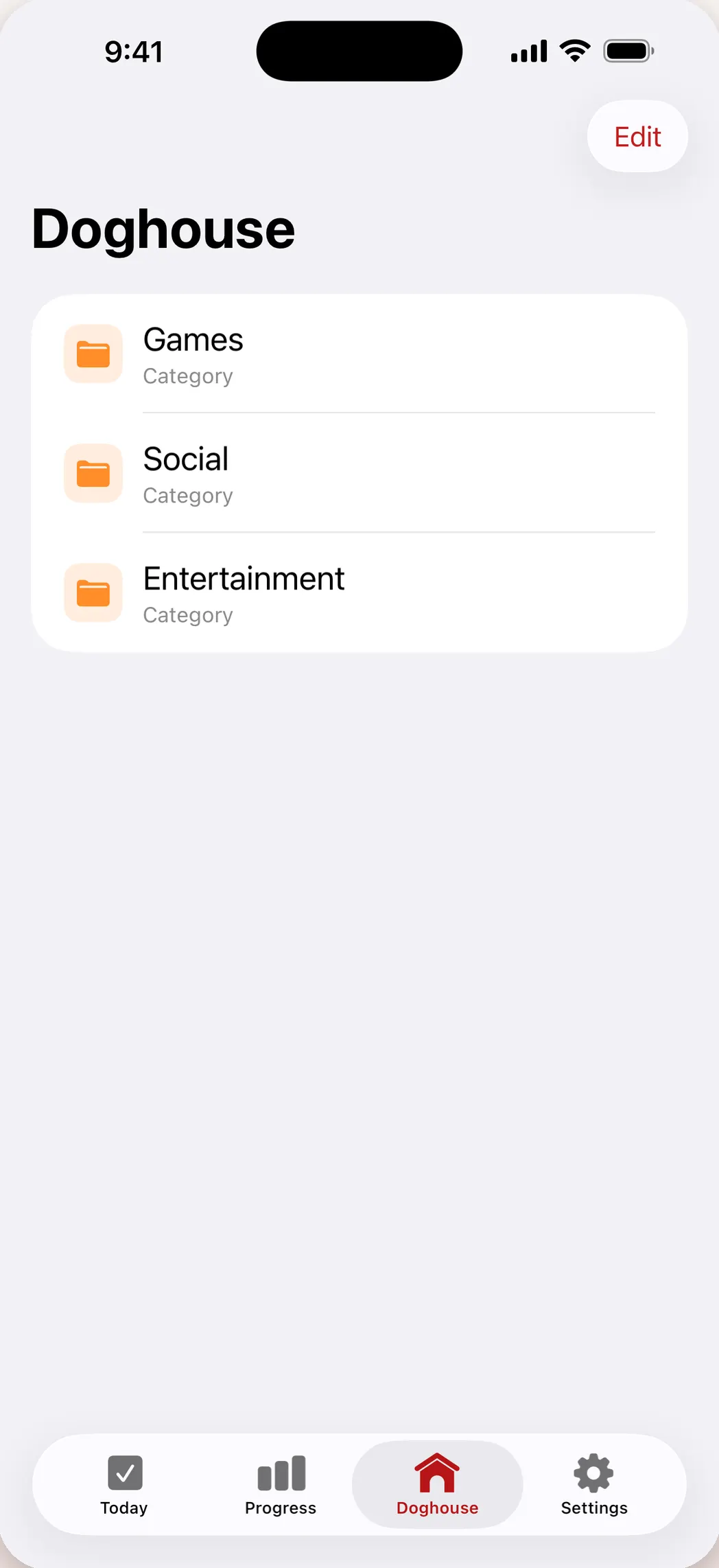
Look at what is missing from that screen: names. Three folder icons and the word Category is all any blocker gets. For a survey of the rest of them rather than a recommendation from the people who make one, our comparison of iPhone app blockers sorts them by the kind of friction they use.
A category setup that holds
- Pick the category by looking, not by name. Tap into it in Add Limit and read what is inside.
- Set the limit on the category, not on the apps, if the point is to cover future installs.
- Set a Screen Time passcode, turn on Block at Downtime, and look for a Block at end of limit switch inside the limit.
- Empty Always Allowed of anything from that category.
- Cover the web versions too, under Content & Privacy Restrictions or in one app that handles apps, categories and websites together.
- Install a free app from the blocked category and try to open it. If it opens, your rule is narrower than you thought.
Questions people ask
Does a category block cover apps I install later?
That is the reason to use one: the rule names the category, not the apps you ticked, and Apple’s framework treats the two as separate things to cover. Apple’s iPhone User Guide does not spell out the new install case, so confirm it on your own phone. Install something free from that category and try to open it. A per-app rule definitely does not cover new installs, because the new app was never on the list.
Can I keep one app out of a blocked category?
In Screen Time, only clumsily. Always Allowed makes an app available at all times, which is more exemption than most people want, and the alternative is to limit individual apps instead of the category and give up the coverage of future installs. Apple’s own framework supports shielding a category “with some exceptions”, so some third-party blockers offer a cleaner version of this. Check the screenshots before paying.
Why do Messages and Snapchat behave differently from everything else?
Two different reasons. Messages and calls are treated as essentials: Apple says that during downtime, only calls, messages and the apps you allow stay available. An app like Snapchat lands wherever its developer filed it on the App Store, which may not be the category you would have chosen. Tap into the category list and look before assuming.
Can I block a whole category of websites too?
Apple’s framework has the same shape for the web: ShieldSettings covers “Categories of websites for the system to cover with a shielding view” as well as individual sites. Screen Time exposes the narrower version, a Never Allow list under Content & Privacy Restrictions where you add each URL by hand and which Apple’s guide gives no way to schedule, described in Apple’s guide to blocking websites. A blocker built on the framework can put website categories in the same rule as your app categories.