
10 min read
How to stop doomscrolling on iPhone, without deleting your apps
Deleting the app does not break a reflex. Five iPhone settings that remove the triggers behind doomscrolling, from grayscale to habit-gated unlocking.
You deleted the app once. It lasted a weekend. By Sunday night you were reading the same feed in Safari, and by Tuesday the icon was back where it had always been.
That is not a failure of willpower. It is what happens when you remove the landing spot and leave the runway. Doomscrolling is a reflex, and a reflex has a trigger: a buzz, a bright icon, an empty minute at a bus stop, the same hour every night. Delete the app and every trigger still fires. Your thumb just finds a new place to land.
So treat it as a trigger problem. Most pages on this subject give you a list of apps. This one is a list of triggers, each with the setting already on your iPhone that breaks it. Nothing costs money until the last section, which says so.
Why deleting the app does not hold
A reflex runs in three steps. Something cues you, your hand reaches, the feed opens. Deleting the app removes only the third step, and removes it badly, because the feed also lives at a web address and the App Store puts the icon back in under a minute.
The first two steps are where the leverage is: remove the cue, or put something between the reach and the feed. Each heading below names the trigger it breaks.
Trigger 1: the notification that was never about the feed
Most scrolling sessions do not start with a decision to scroll. They start with a pickup that had a reason: a message, a calendar alert, a delivery update. You open the phone for that, and the feed is one tap from wherever you landed.
So the first job is not to silence everything. It is to work out which notifications actually pull you in. For a week, each time you catch yourself scrolling, ask what you picked the phone up for.
Then cut those at the source. Apple’s guide to changing notification settings in the iPhone User Guide for iOS 27 gives the path: open Settings, tap Notifications, tap an app below Notification Style, and turn off Allow Notifications. For apps you want to hear from later, the same page covers Scheduled Summary, which batches “notifications for several apps at once” at times you choose.
A Focus does the same job on a timer. Apple describes Focus as “a feature that helps you concentrate on a task by minimizing distractions”. Open Settings, tap Focus, pick one, then tap Apps and choose Allow Notifications From or Silence Notifications From, per Apple’s page on allowing or silencing notifications for a Focus. Add Schedule makes it switch on by itself.
Be clear about what this breaks. A Focus silences; it does not block, and nothing in Apple’s description stops an app from opening when you tap it. What you have removed is the pickup that was not yours.
Trigger 2: the icon on your first Home Screen page
Your thumb knows where the app is and can get there without you. That is muscle memory, and it is why a bright icon on page one is the most reliable trigger on the phone.
Move it without deleting it. Apple’s guide to removing or deleting apps separates the two. On the Home Screen, “Touch and hold an app, tap Remove App, then tap Remove from Home Screen.” The app moves to App Library and keeps its data.
Now opening it takes a different gesture. Per Apple’s page on App Library, you swipe left past all your Home Screen pages, tap the search field, and type the name. Typing a name is a decision. A tap in a familiar corner is not. That gap is the whole tactic.
One setting stops it quietly reversing: open Settings, tap Home Screen & App Library, and choose App Library Only, so a reinstalled app does not land back on page one.
What this breaks: the reach that happens before you decided anything.
Trigger 3: color
A feed is built to be looked at. Take the color out and it is a column of gray rectangles. Whether that changes how long you stay is something you can test on yourself in an afternoon.
The filter lives in Accessibility. Apple’s page on changing display colors says you can “apply a filter to view the entire screen in grayscale”, and gives the path: Settings, Accessibility, Display & Text Size, then “Tap Color Filters, turn on Color Filters, then tap a color filter to apply it.” Pick the grayscale one.
The shortcut is what makes it livable, because you will want color back for a photo or a map. Apple’s page on quickly turning accessibility features on or off says: “Go to Settings > Accessibility > Accessibility Shortcut, then select the features you want.” After that, “Triple-click the side button or Home button to turn the accessibility features of your choice on or off.” With a single feature selected, Apple says the triple-click toggles it immediately. Color Filters is the feature to select; Apple’s shortcut page does not list the features by name, so confirm it appears in that list on your own iOS version.
What this breaks: the visual pull of the feed itself, the one trigger that lives inside the app.
Trigger 4: the hour
Ask when it happens and the answer is rarely “all day”. It is bed, or after dinner, or first thing. The trigger is the slot, so the fix is friction that arrives on a schedule and leaves on one. This is Screen Time’s job, and the controls depend on your iOS version.
On iOS 26, the tools are Downtime and App Limits, in Apple’s guide to setting schedules with Screen Time for that version. Downtime is a window: Settings, Screen Time, App & Website Activity turned on, Downtime, Scheduled, then Every Day or Customize Days with a start and end time. Apple states the default plainly: “By default, Screen Time limits can be ignored once reached.” Set a Screen Time passcode and turn on Block at Downtime, and Apple says restricted apps cannot be opened during downtime and appear dimmed with an hourglass icon. App Limits is the daily-allowance shape, under Settings, Screen Time, App Limits, Add Limit.
On iOS 27, Apple’s guide to Screen Time Schedules and Time Allowances describes a redesign: “you can use Time Allowances to set how long you use your apps each day, and Schedules to set when during the day you can use them.” The path is Settings, Screen Time, Screen Time Schedule, turn on Schedule, then Add Schedule, with time windows and category allowances such as Social Media. Follow whichever set of steps matches what your Settings app shows.
Either way, check Always Allowed. Apple says apps on that list can be used at all times regardless of any schedule, so a browser left there is a hole the size of the open web.
What this breaks: the slot. Set the window over the hours you keep losing and leave the rest of the day alone. Our guide to blocking Instagram and TikTok at night on iPhone walks the bedtime version in full. And since you set the passcode, you know it; what that means is in how to use Screen Time on yourself, as an adult.
Trigger 5: the open gate
Every tactic above either removes a cue or makes you wait, and waiting is the weak spot. A clock can be waited out, and a schedule can be edited by the person who wrote it.
The last trigger is that opening the feed costs nothing. There is no condition on it, so whatever you meant to do today, the scroll is available first and wins the tie.
Conditional unlocking changes the order. The apps you choose stay locked until something you chose is done, and then they open. It does not punish the scroll. It makes the scroll come second.
We make one of these, so weigh this section accordingly. Goodwater Labs builds Habit Hound, an app blocker that opens when today’s habits are done. You put the apps that eat your time in the Doghouse, add a few daily habits, and when you reach for a locked app the block screen names what is left, for example “Finish 2 more habits to unlock News”. There are no notifications, because the locked app is the reminder. A 15-minute bypass exists for the day the rule is wrong, it is counted, and Strict Mode removes it. You mark your own habits, so nothing is verified. It runs on the same Apple frameworks as Screen Time, with the same ceiling, and you can delete it like any app.
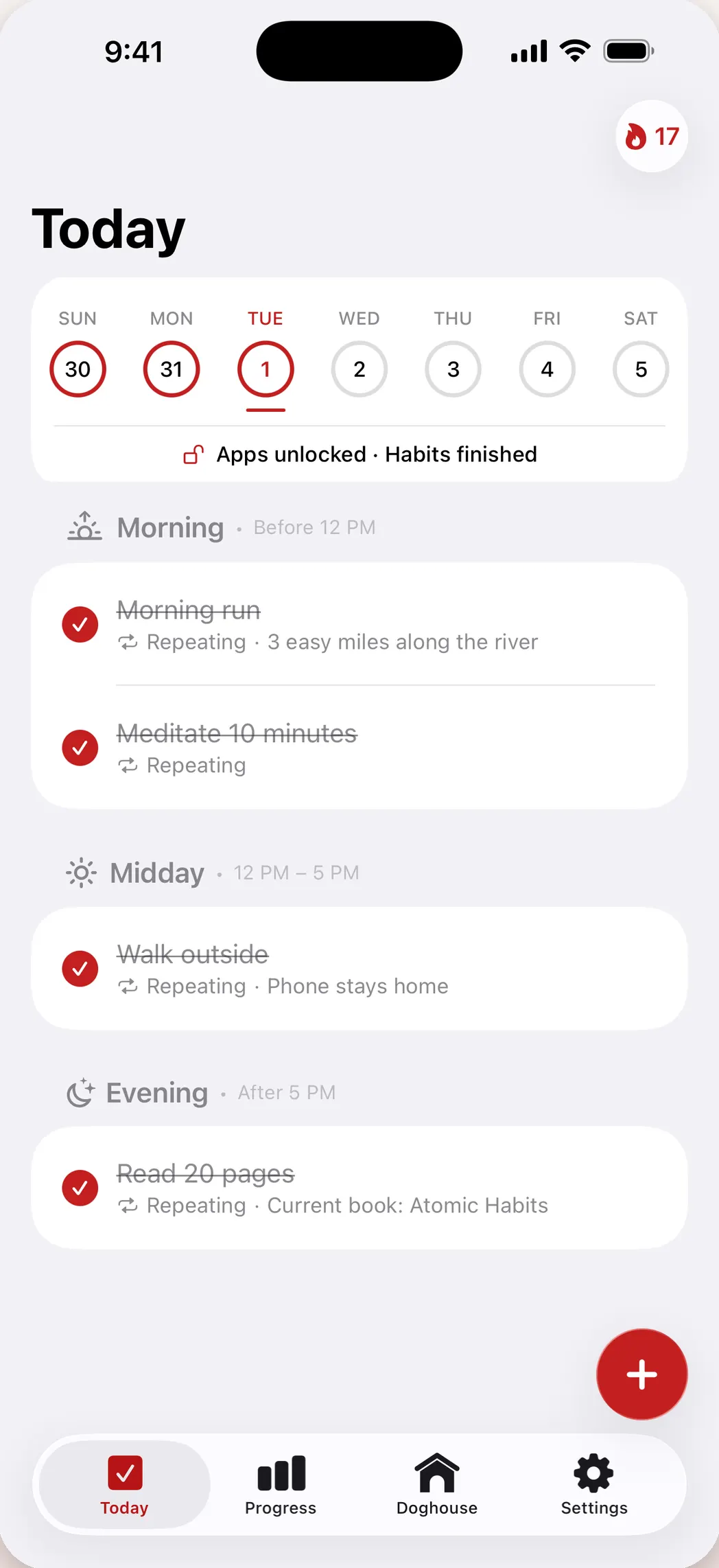
Two other shapes fit some readers better. If you will not trust yourself to tap done, Habits First says on its site that it unlocks your apps automatically after you finish your habits, detecting them through Apple Health and fitness trackers. If you want a pause rather than a condition, one sec puts an interruption in front of the app and describes the aim as breaking your muscle memory, which is Trigger 2 in app form. The wider choice is in habit tracker or app blocker: which one do you actually need.
What this breaks: the tie. The feed stops being the thing with no cost attached.
Which triggers to break first
In this order. Stop when the scrolling stops.
- Notifications. The pickup you did not choose is the cheapest trigger to remove.
- The icon. One minute, and a tap becomes a typed decision.
- Color. Reversible with a triple-click. Judge it in a day.
- The hour. Once you know which hours. Block the slot, not the day.
- The gate. If you still tap through your own rules, the problem is no longer the cue.
Not on the list: a streak, a counter or a daily reminder. Those add a second habit on top of the first and tend to collapse together, for reasons laid out in why streak apps stop working by week two.
Questions people ask
Does grayscale actually stop doomscrolling?
It removes one trigger, the visual one, and leaves the rest alone. Treat it as a one-day experiment rather than a fix, and set Color Filters as your Accessibility Shortcut so it costs a triple-click to try and a triple-click to undo.
Should I just delete Instagram and TikTok?
Delete them if you do not want them, but do not expect deletion alone to hold: the feeds are reachable in Safari and reinstalling takes a minute. Removing the icon from the Home Screen keeps the app and makes opening it a typed decision in App Library.
Can Screen Time block an app until I have done something?
No. Screen Time’s inputs are times of day and minutes per day, so every rule it makes can be satisfied by waiting. Gating an app on a task you chose takes a third-party blocker built on Apple’s Screen Time frameworks.
Do I need a Focus or Downtime?
They do different jobs. A Focus silences notifications and can swap your Home Screen page, but it does not stop an app from opening. Downtime on iOS 26, or a Screen Time Schedule on iOS 27, is what makes an app unavailable in a window. Usually you want both.